Screenshot Guide
Chrome extensions aren't websites — they're popups, overlays, and injected styles. The Chrome Web Store still requires 1280×800 screenshots. Here's how to capture them.
Setup
- Open Chrome
- Open DevTools:
Cmd+Opt+I(macOS) orF12 - Toggle Device Toolbar:
Cmd+Shift+M - At the top bar, select Responsive mode
- Set dimensions: 1280 × 800
- Set zoom: 100%
- Device Pixel Ratio: 2 (retina quality — screenshots will be 1280×800 at 2x)
Capture: Cmd+Shift+P → type "Capture screenshot" → Enter.
Per-Extension Instructions
Dark Theme for Google Translate
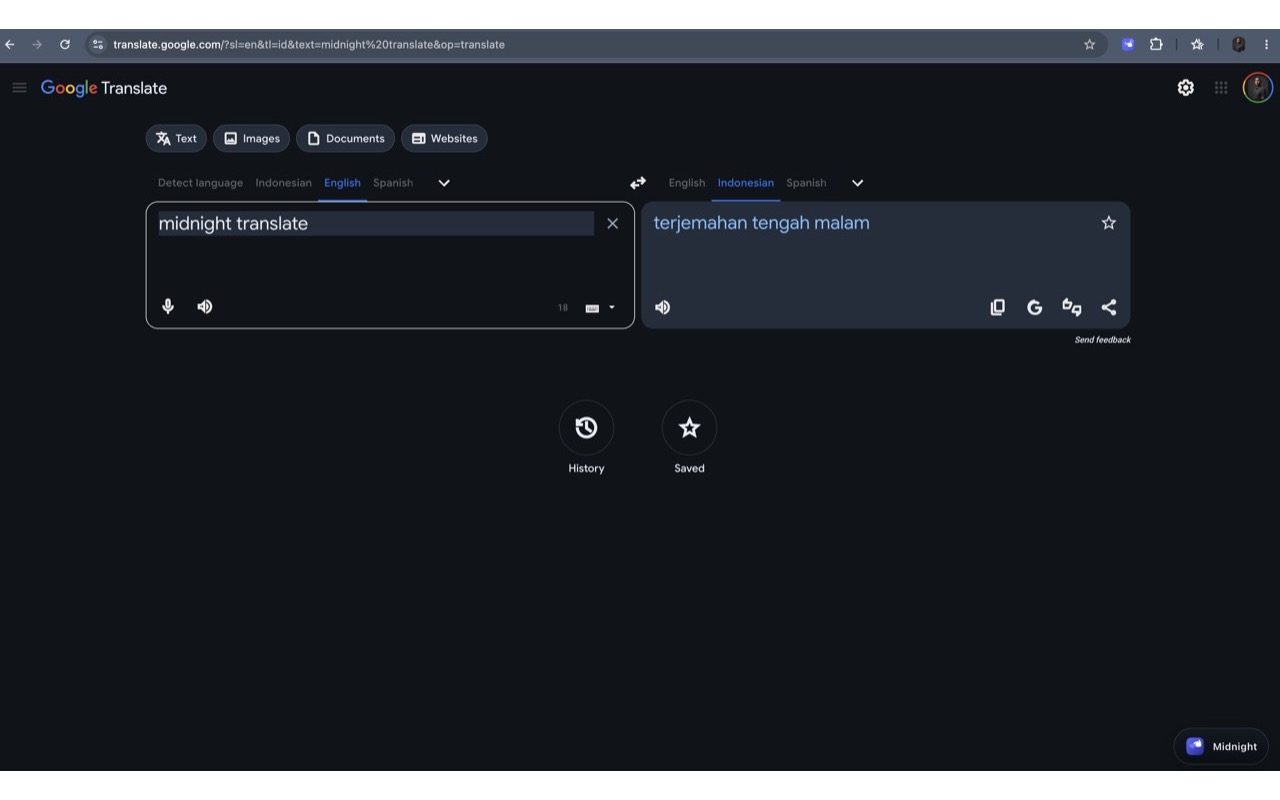
This is the easiest. The dark theme transforms the entire page.
What to capture:
- Open
translate.google.com, translate a real phrase (e.g. English → Spanish: "Hello, how are you?") - Make sure the moon toggle is visible in the header (top-right)
- Ensure dark mode is active
- Capture the full page at 1280×800
Tip: Pick a translation that shows different text lengths in both textareas — looks more "real."
Target: 1–2 screenshots:
- One showing the full translation page with dark theme
- (Optional) One showing the accent color picker popup open on the page
PasteGuard
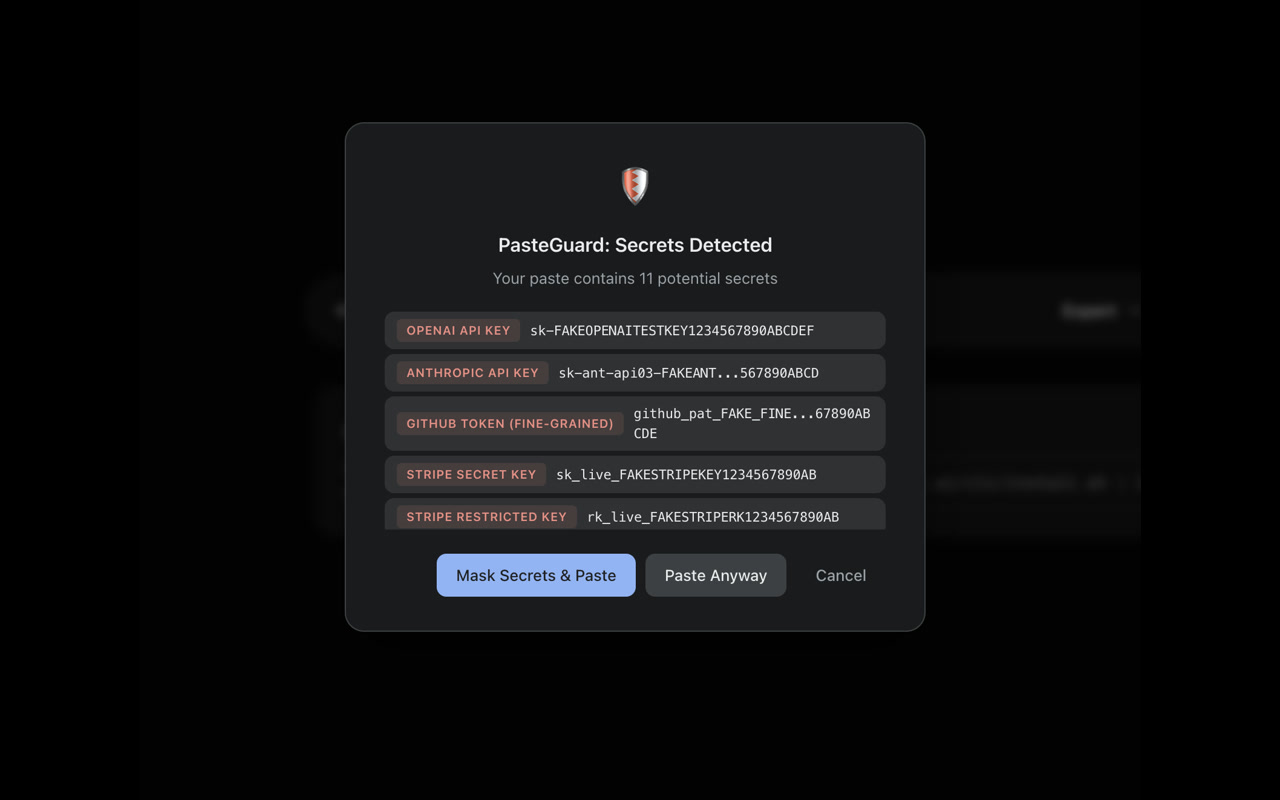
PasteGuard is event-driven — it activates when you paste text. You need to trigger it.
What to capture:
- Navigate to
chatgpt.com(or any AI chat site) - Resize viewport to 1280×800
- Copy a fake test key to your clipboard:
sk-ant-api03-fake-test-key-for-screenshot-purposes-only - Click the chat input and press
Cmd+V(orCtrl+V) - PasteGuard intercepts → warning dialog appears
- Immediately capture screenshot (dialog auto-dismisses after a few seconds)
If the dialog dismisses too fast: Open DevTools → Sources → pause script execution after pasting, then capture.
Alternative — popup: Right-click the extension icon → Inspect Popup. The popup opens in its own DevTools window. Use Device Emulation at 1280×800. This shows the settings UI (warn/block toggle).
Target: 2 screenshots:
- One showing the warning dialog on an AI chat page with a detected secret
- One showing the popup with the warn/block toggle
SEO Shot
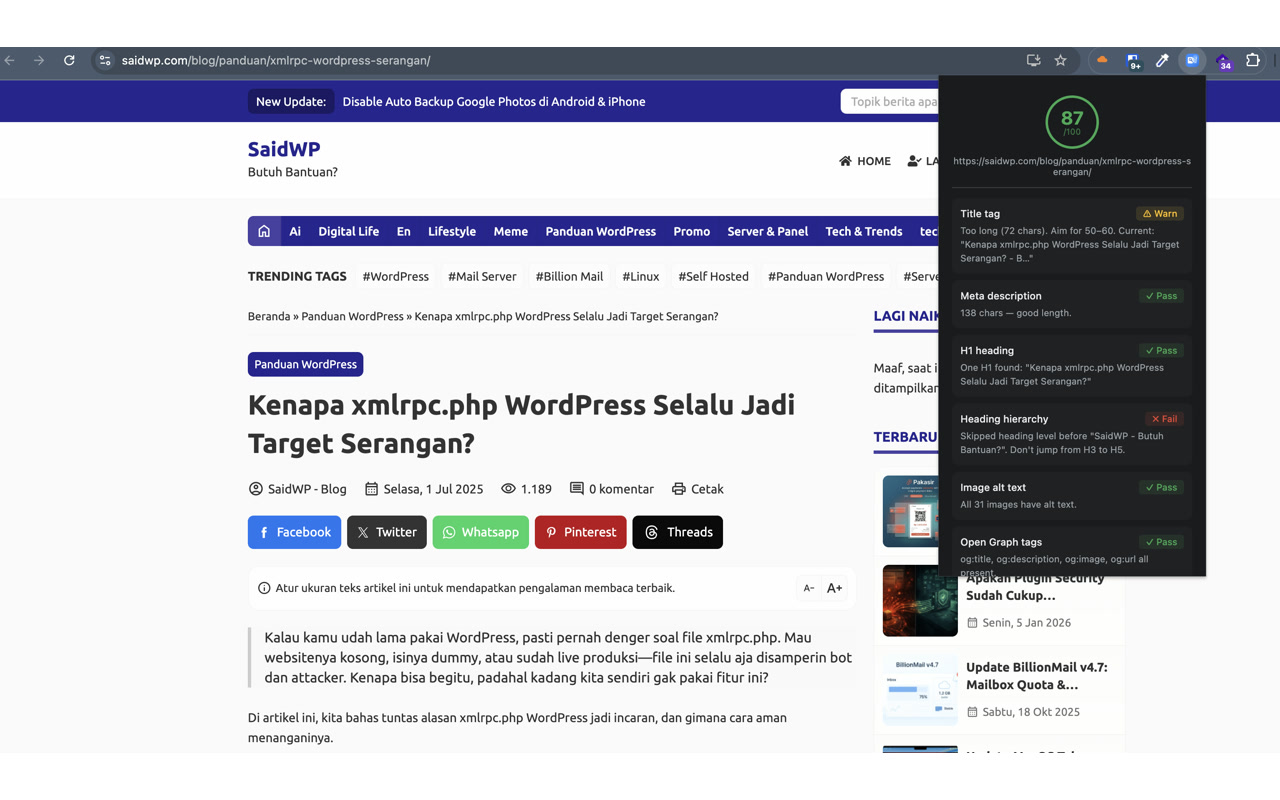
SEO Shot is a popup that scans the current page when clicked.
What to capture:
- Navigate to a real website (e.g. your own docs site at
srmdn.github.io/chromext/) - Resize viewport to 1280×800
- Click the SEO Shot extension icon — popup opens and scans the page
- Capture the entire browser window showing both the popup results and the webpage behind it
For a clean popup-only shot:
- Right-click the extension icon → Inspect Popup
- DevTools opens attached to the popup
- In the Elements panel, add to the
<html>or<body>element:cssmin-width: 1280px; min-height: 800px; - Use Device Emulation → set 1280×800
- Capture screenshot
Tip: Use a page that scores well (your docs site, for example) — shows the extension at its best. Also capture a page with issues to show the diagnostic value.
Target: 2 screenshots:
- One showing the popup over a well-scoring page
- One showing the popup results highlighting issues on a different page
File Preparation
After capturing:
- Save each screenshot as PNG or JPEG
- Name descriptively:
screenshot-1.png,screenshot-2.png - Place in each extension's
store-assets/directory:google-translate-dark/store-assets/screenshot-1.png pasteguard/store-assets/screenshot-1.png seo-shot/store-assets/screenshot-1.png - Upload in the CWS developer dashboard under "Store listing → Screenshots"
Requirements Summary
| Field | Required | Format |
|---|---|---|
| Screenshots | Yes (1–5) | PNG or JPEG, 1280×800 or 640×400 |
| Store icon | Yes | PNG, 128×128 (uploaded in dashboard) |
| Small promo tile | Yes | PNG or JPEG, 440×280 |
| Marquee | Optional | PNG or JPEG, 1400×560 |
The store icon can reuse your extension's 128×128 PNG from icons/ — just upload it separately in the CWS dashboard.